
Solving the Unity “Active Input Handling” Error
Have you ever encountered this frustrating error in your Unity Console?
This error typically arises when your Unity project is configured to use the **New Input System Package**, but some of your scripts (often from older assets or custom code) are still attempting to use the **Legacy Input Manager** methods (e.g., `UnityEngine.Input.GetKeyDown`). Unity detects this conflict and prevents the legacy input calls from executing.
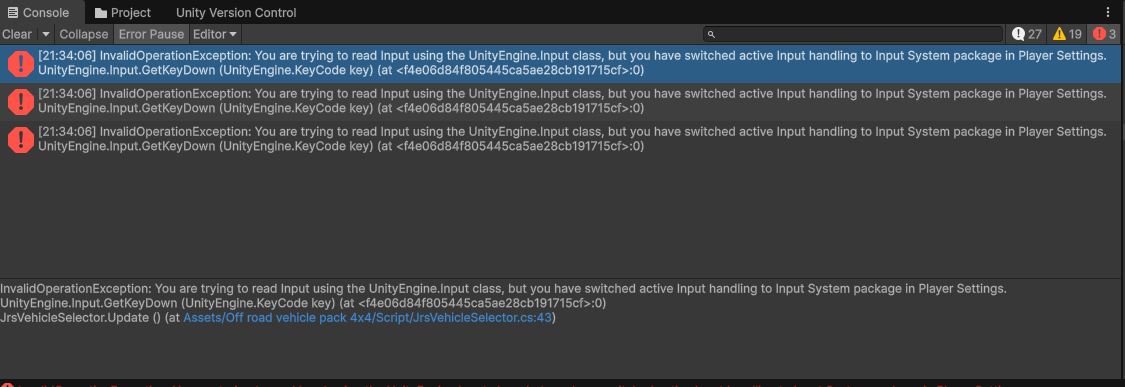
The “InvalidOperationException” in the Unity Console.
The Quick Fix: Enable Both Input Systems
The simplest and often most practical solution, especially when working with mixed assets, is to tell Unity to support **both** the new Input System and the old Input Manager simultaneously. Here’s how:
- Navigate to **Edit > Project Settings** in the Unity editor.
- In the Project Settings window, select the **Player** category from the left-hand menu.
- Scroll down to the **Other Settings** section, and then locate **Configuration**.
- Find the dropdown menu for **Active Input Handling**. Change its value from `Input System Package (New)` to **Both**.

Changing “Active Input Handling” to “Both” in Project Settings.
Unity will then prompt you to restart the editor. Click **Apply** or **Restart** (depending on your Unity version) to apply the changes and relaunch Unity.
Why This Works
By setting “Active Input Handling” to “Both,” you inform Unity that it should allow scripts to interact with input using either the `UnityEngine.Input` class (old system) or the classes provided by the new Input System package. This resolves the `InvalidOperationException` by removing the conflict.
Alternative Solutions (For Advanced Users)
- Switch to Old Input Manager: If you do not intend to use the New Input System at all, you can set “Active Input Handling” to `Input Manager (Old)`. However, this will disable any functionality relying solely on the New Input System.
- Migrate Code to New Input System: For a cleaner long-term solution, it’s best to refactor your code to fully utilize the New Input System Package. This involves replacing calls like `Input.GetKeyDown()` with their New Input System equivalents (e.g., using `PlayerInput` components or specific `Keyboard` device references). This approach is more involved but leads to more robust and flexible input handling.
For most users facing this error, enabling “Both” provides an immediate and effective workaround, allowing you to continue developing without extensive code changes.
Leave a Reply