

How to Create Procedural 3D Wheels in Blender: The Ultimate Guide to Pro-Radial Addon
By Jermesa Studio | Last Updated: June 2026
Modeling complex, realistic 3D wheels in Blender has historically been a tedious and time-consuming process. Getting the proportions right, arraying spokes evenly, aligning bolt holes, and adding clean bevels typically requires advanced modeling techniques and destructive workflows. If you need to change the spoke count or rim thickness later, you often have to start all over again.
Enter Pro-Radial v6.2—a game-changing, 100% free, and open-source procedural modeling addon developed by Jermesa Studio. In this guide, we’ll walk you through how to use this powerful tool to create professional, game-ready, or render-ready 3D wheels, rims, and tires with a completely non-destructive workflow.
Compatible with Blender 2.80 up to 5.x | GPL v3 License
What is Pro-Radial?
Pro-Radial is a professional procedural modeling system engineered specifically for Blender. It combines real-time profile canvas editing, spoke array distribution, and dynamic boolean detailing into a unified, non-destructive modifier stack.
This means you can edit curves, adjust spoke counts, modify offsets, and tweak bevel widths at any point in your design process, and the underlying geometry instantly regenerates in the background.
Step-by-Step Tutorial: Making Your First Wheel
Step 1: Get the Addon Installed
- Go to the Pro-Radial Download Page and grab the latest release ZIP folder (
pro_radial.zip). - Open Blender, go to Edit > Preferences > Add-ons.
- Click Install… in the top right, choose the downloaded ZIP file, and select Install Add-on.
- Check the box next to Object: Pro-Radial to activate it.
- In your 3D Viewport, press the N key to open the sidebar and click on the Pro-Radial tab to reveal the interface!
Step 2: Load a Preset or Build From Scratch
If you are a beginner, the easiest way to understand the addon is to use the Complete Presets panel. This lets you load full pre-made designs with a single click, allowing you to examine how they are structured.
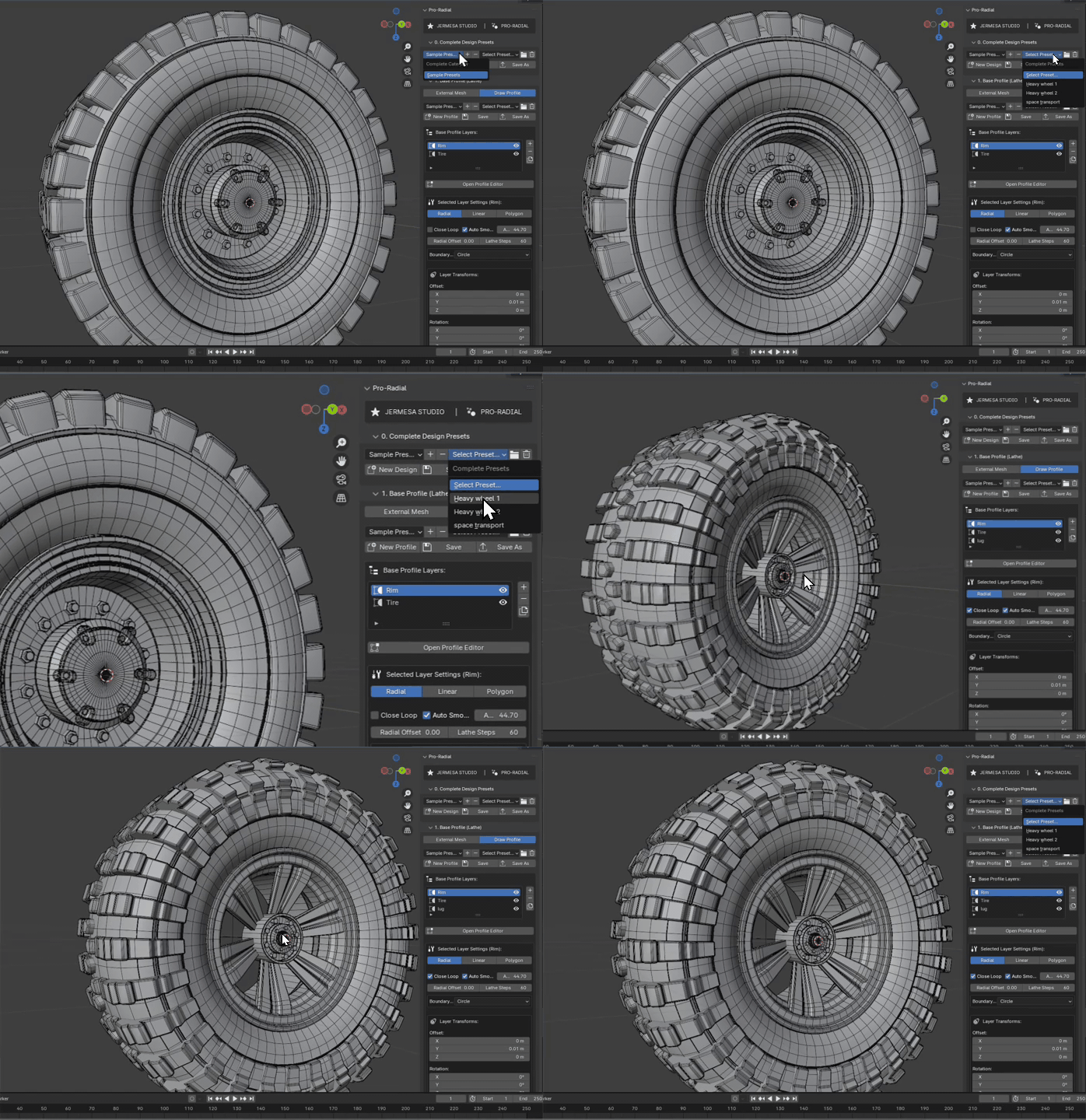
Load and explore presets directly from the sidebar.
Step 3: Stacking Base Profile Layers (Lathe)
Every wheel design starts with a silhouette. Pro-Radial’s Base Profile panel uses a lathe operator to sweep a 2D curve 360 degrees, creating the main rim and hub structures.
You can stack multiple layers (like Hub, Rim, and Tread) together. Each operates with its own coordinates and shapes:
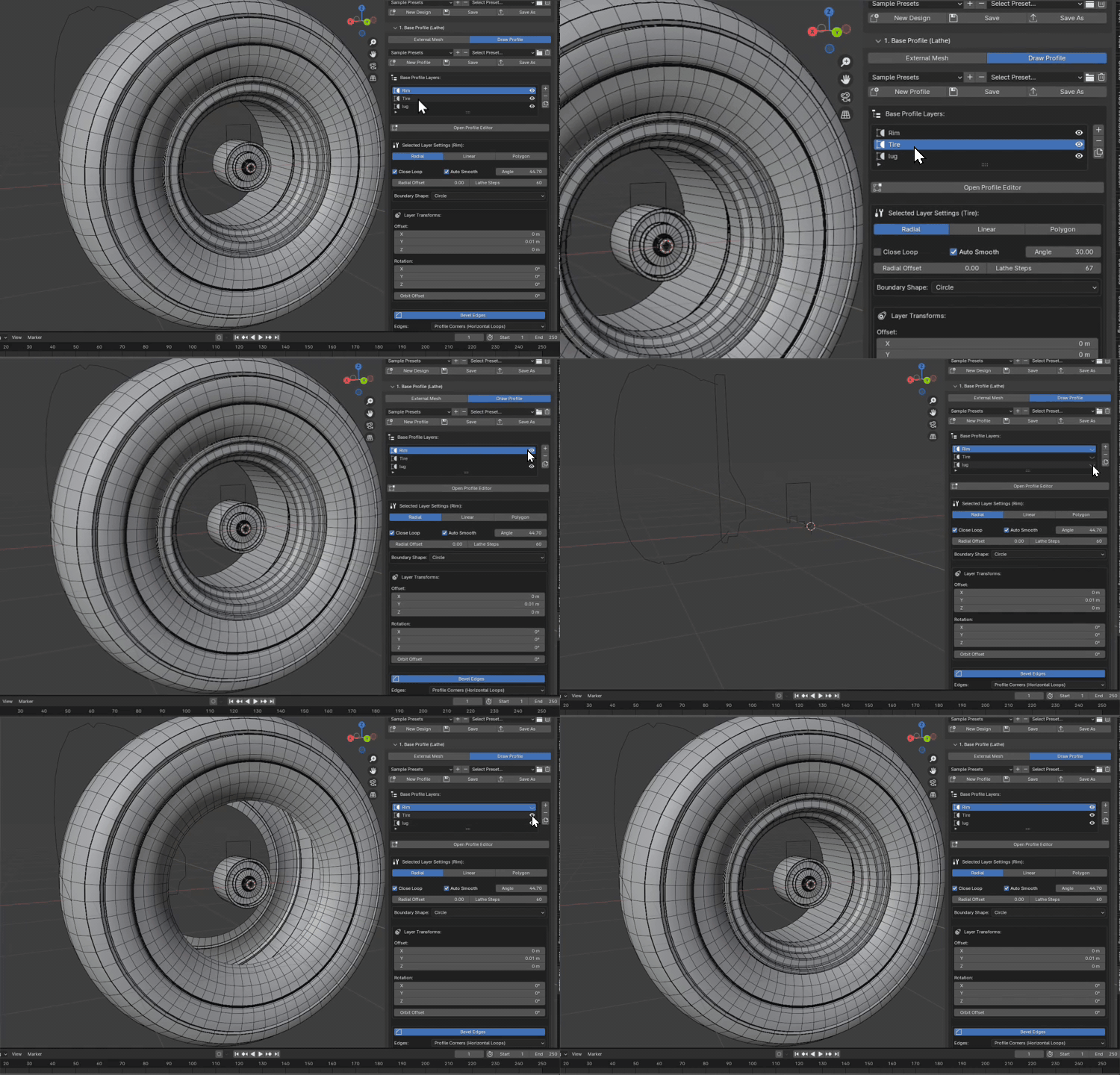
For each profile layer, you can easily customize parameters like the sweep radius (radial_offset), the smoothness of the curve (lathe_steps), and its position offset in the 3D space:

Step 4: Using the Interactive 2D Profile Editor
One of Pro-Radial’s best features is the Interactive 2D Profile Editor. Rather than forcing you to move vertices in a messy 3D Viewport, clicking Open Profile Editor activates a specialized 2D drafting grid overlay. Here is how simple it is to edit shapes:
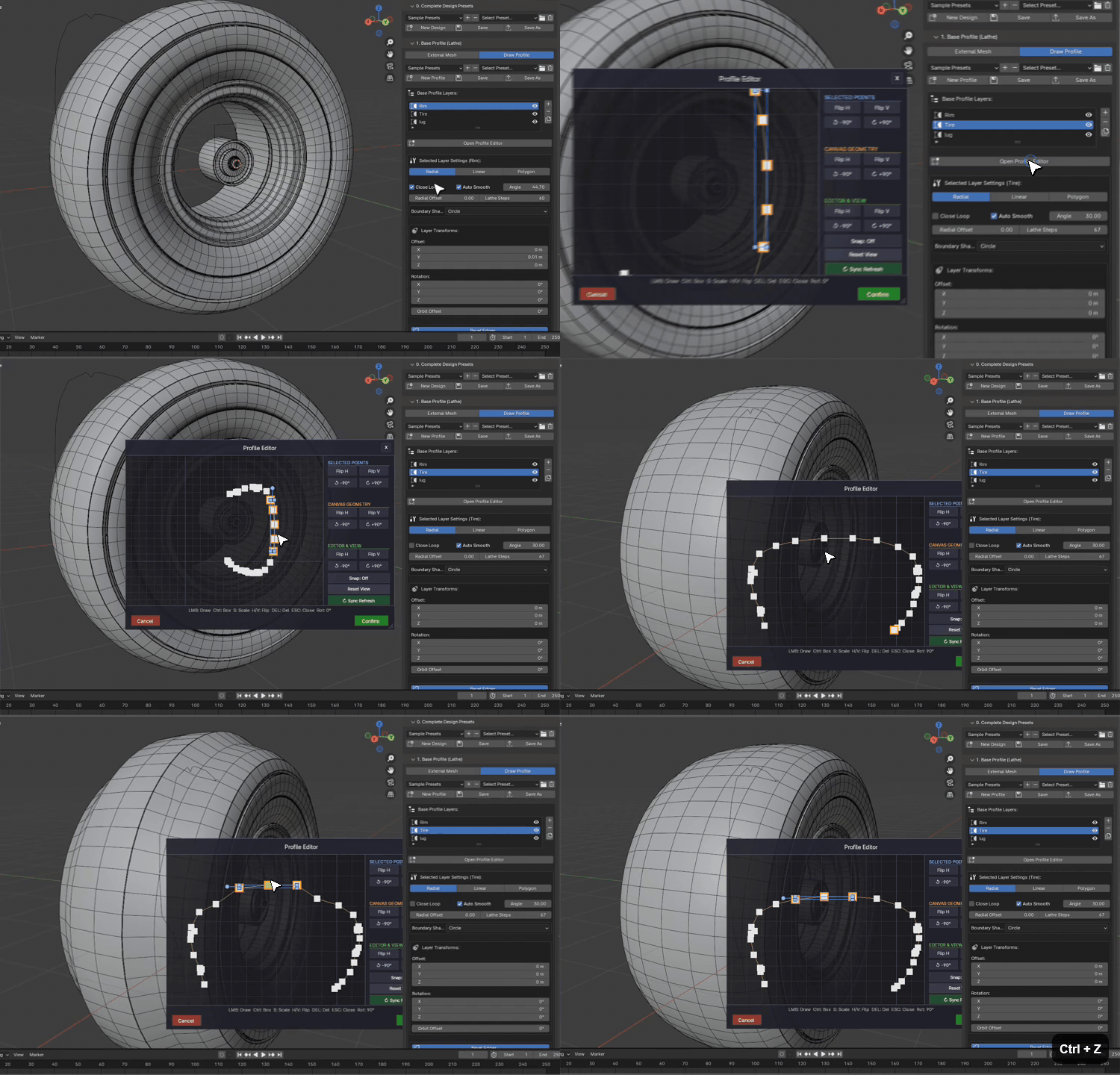
1. Open the Canvas
Clicking the button brings up the viewport grid overlay.
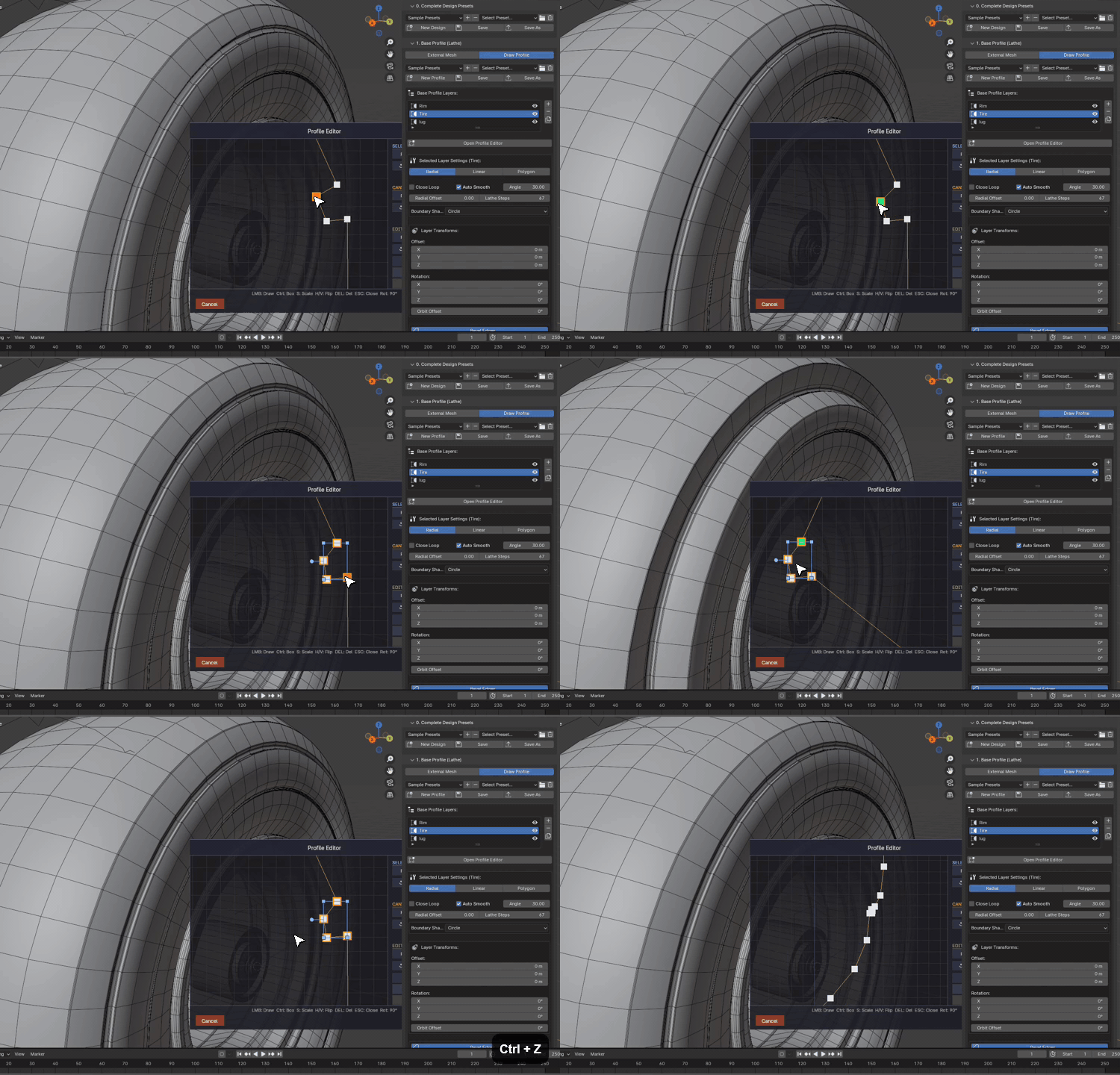
2. Adding Points
Simply left-click to drop points and build your profile silhouette.
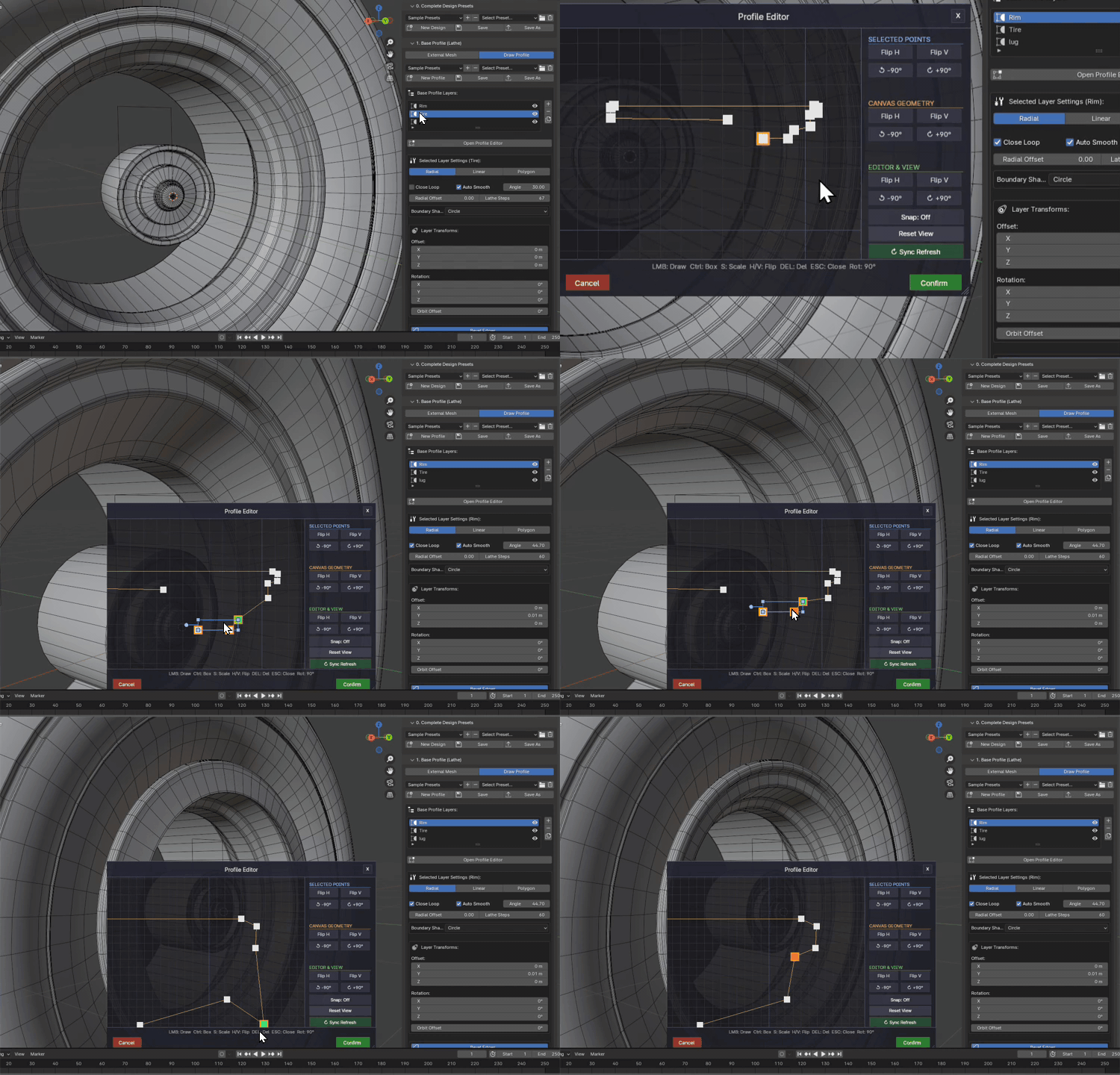
3. Switching Layers
Easily switch between Rim, Tire, or Tread layers in the editor.

4. Adjusting & Dragging
Click, drag, and box-select vertices to tweak proportions in real time.
Step 5: Constraining to Boundary Shapes
By default, lathe tools sweep in a circle. However, Pro-Radial allows you to set Boundary Shapes. This means you can constrain your lathe output to warp into rectangles, ovals, capsules, or custom profiles, unlocking futuristic and non-circular wheel shapes!

Easily warp sweep geometry into rectangles or oval profiles.
Step 6: Creating Radial Spoke Arrays
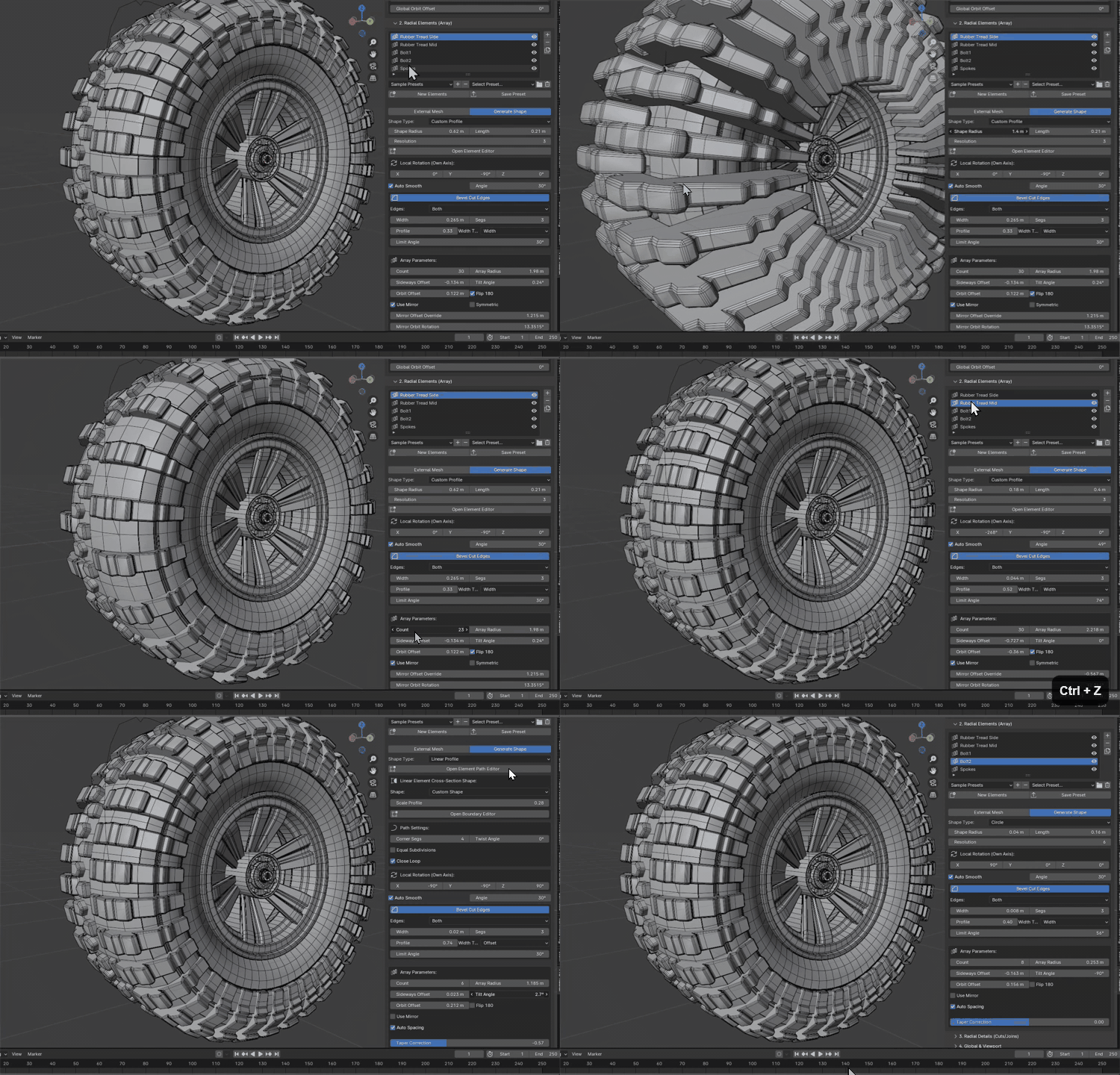
A wheel isn’t complete without spokes. The Radial Elements panel manages circular arrays of spokes, bolts, or decorative features. You can generate procedural array shapes (Circle, Rectangle, Capsule) or point directly to a custom mesh object in your viewport!
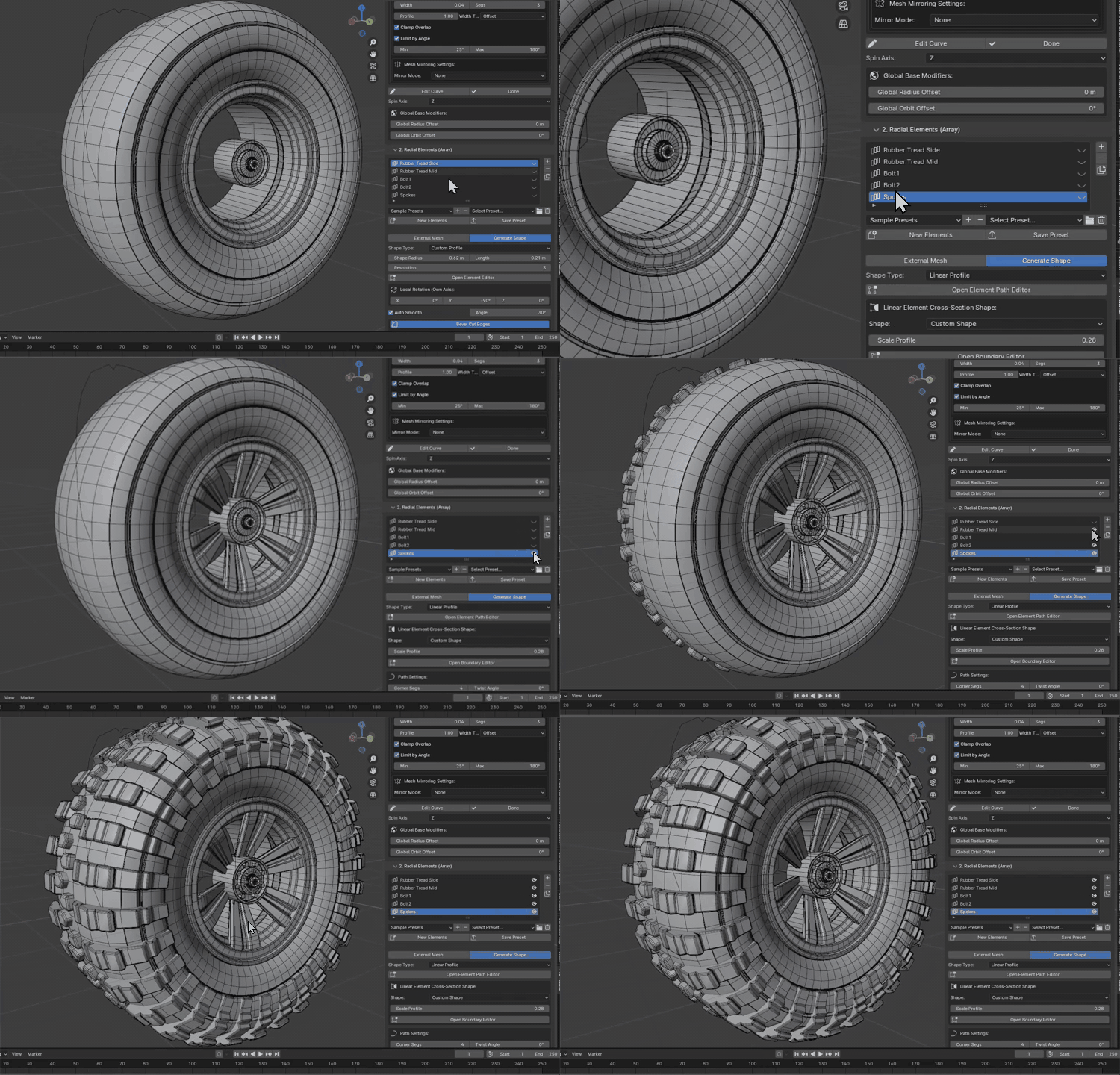
The array settings allow you to control spoke counts, orbit radius, manual gap adjustments, and taper factors to make sure the geometry transitions smoothly from the rim into the center hub without overlaps:
Step 7: Adding Dynamic Boolean Cuts & Details
Want to cut air vents, bolt holes, or add panel details? Under the Radial Details panel, you can configure non-destructive Boolean operations. Choose Difference to cut holes, or Union to fuse detailing geometry onto the main wheel mesh, complete with procedural bevels to capture highlights:
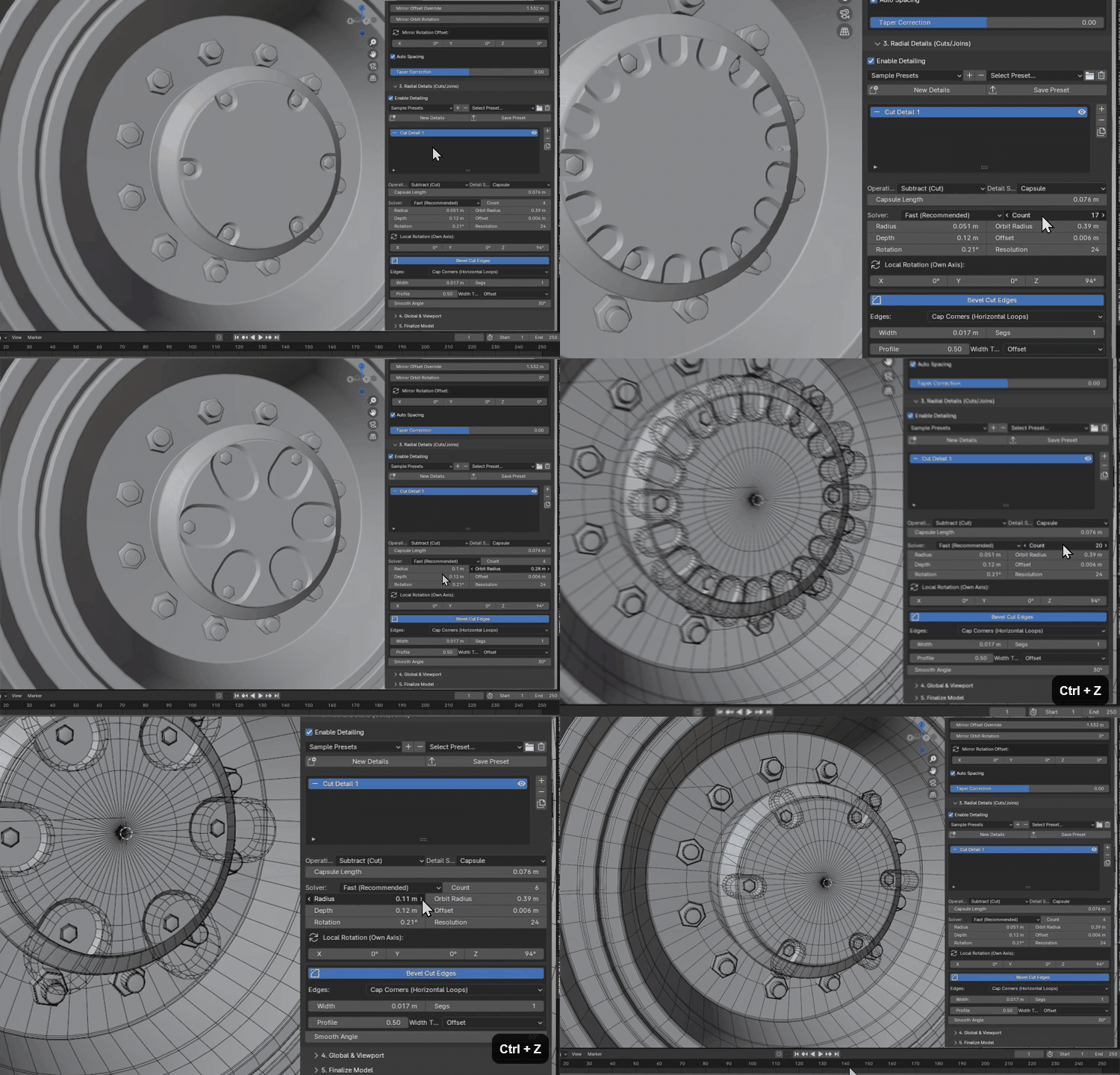
Fast and non-destructive boolean cuts with live sliders.
Step 8: Global Configurations & Sizing
The Global Viewport panel provides overall orientation controls. Switch between X, Y, or Z rotation axes, scale the entire wheel assembly, or check Stand Upright to align your wheel vertically in the viewport automatically:
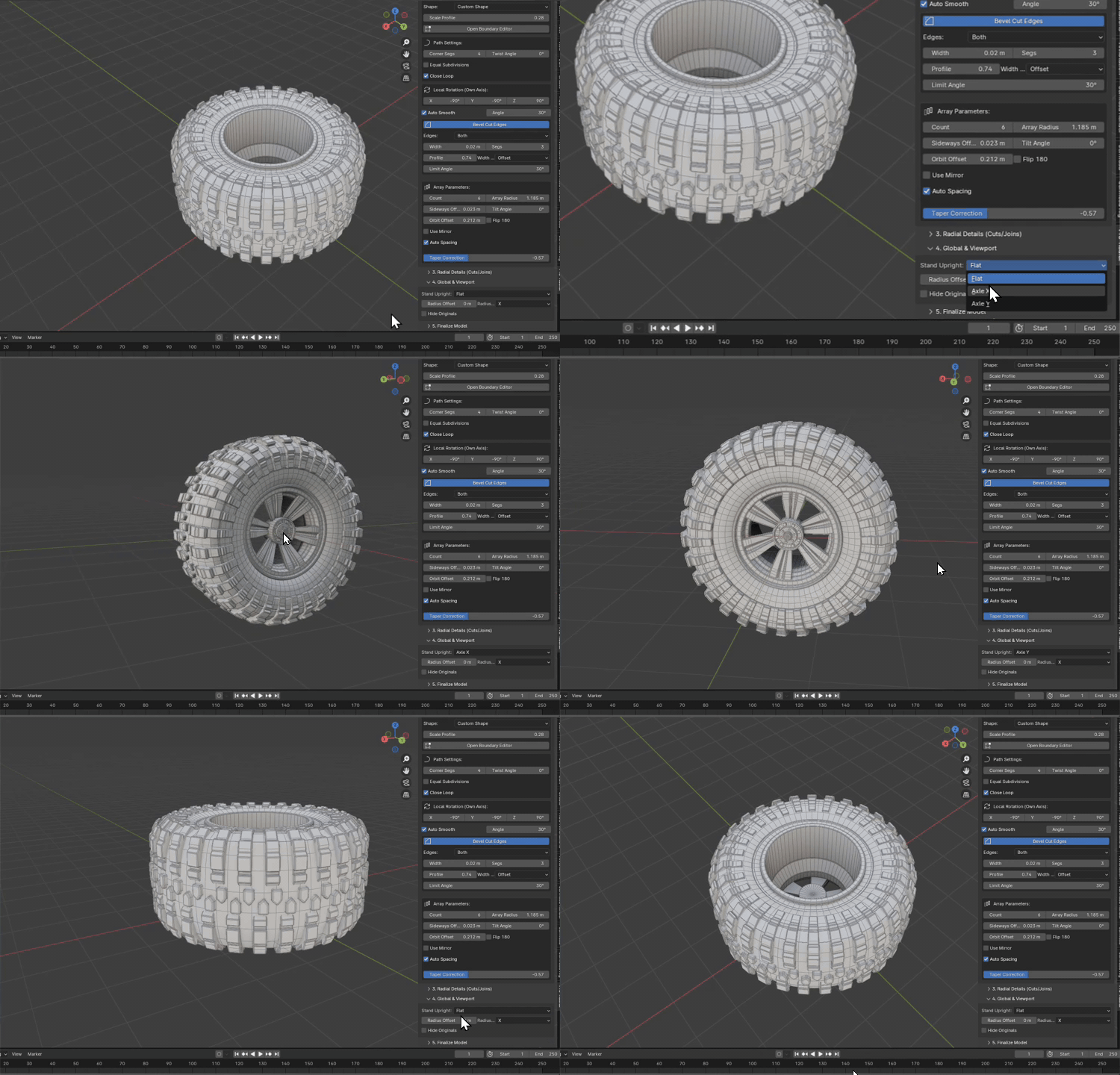
Step 9: Collapse and Finalize the Mesh
Once your design is complete, click Create Final Mesh in the finalization sub-panel. Pro-Radial will copy the geometry, apply all array and boolean modifiers, and output a clean, static, UV-ready mesh. The original procedural generator object is hidden as a backup in case you need to tweak parameters later!
Pro-Radial Addon Key Features Table
| Feature | Functionality | Benefit for Beginners |
|---|---|---|
| 2D Canvas Editor | Draw profiles on a coordinate grid viewport overlay. | Intuitive visual silhouette drawing without complex 3D tools. |
| Design Presets | Save and load templates (Rim, Tires, Hubs) with one click. | Instantly explore preset files and learn by reverse-engineering. |
| Boundary Shapes | Warp profiles into Circle, Oval, Rectangle, and Capsule constraints. | Create complex non-circular hubs or rims effortlessly. |
| Radial Spokes Arrays | Symmetrical, auto-spaced arraying of internal spoke curves or external meshes. | Adjust spoke count, tilt, and taper using sliders. No overlaps. |
| Live Boolean Engine | Difference and Union arrays for bolt slots, air vents, and offsets. | Add intricate patterns and holes cleanly, without messing up topology. |
Ready to Elevate Your Blender Modeling?
Whether you are designing futuristic vehicle wheels for a sci-fi game, modeling realistic tires for product renders, or just starting your journey in Blender, Pro-Radial makes wheel modeling fast, fun, and non-destructive.
Get Pro-Radial v6.2 Now
Start creating procedural 3D wheels inside Blender today. Completely free, open-source, and beginner-friendly!
Visit the Download PageDeveloped by Jermesa Studio. Distributed under GPL v3. Happy modeling!
Leave a Reply