
Fixes – InvalidOperationException: You are trying to read Input using the UnityEngine.Input class, but you have switched active Input handling to Input System package in Player Settings
✅ If you encounter these errors in Unity 6 or later, please follow these steps:
- The error mainly occurs in Unity 6 or later due to the New Input System pre-installed when you create a new project in these versions.
- Navigate to **Edit > Project Settings** in the Unity editor.
- In the Project Settings window, select the **Player** category from the left-hand menu.
- Scroll down to the **Other Settings** section, and then locate **Configuration**.
- Find the dropdown menu for **Active Input Handling**. Change its value from `Input System Package (New)` to **Both**.
- Go to Window and click on Package Manager
- Under Unity Registry search for Input System and click on Remove
- After removing the pre-installed Input System click on Restart the Editor , the error will disappear, and Unity will read the input using the UnityEngine.Input class.
✅ Solution 1:
The Quick Fix: Enable Both Input Systems
The simplest and often most practical solution, especially when working with mixed assets, is to tell Unity to support **both** the new Input System and the old Input Manager simultaneously. Here’s how:

Changing “Active Input Handling” to “Both” in Project Settings.
Unity will then prompt you to restart the editor. Click **Apply** or **Restart** (depending on your Unity version) to apply the changes and relaunch Unity.
Why This Works
By setting “Active Input Handling” to “Both,” you inform Unity that it should allow scripts to interact with input using either the `UnityEngine.Input` class (old system) or the classes provided by the new Input System package. This resolves the `InvalidOperationException` by removing the conflict.
✅ Solution 2 (for old version of JRS Vehicle Physics Controller):


🏝️⛰️ Terrain Assets Collection: Compatible with (Terrain Generator)
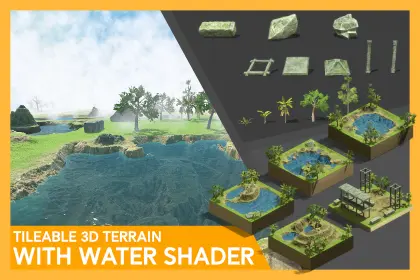


Please Check out.. our Asset Store page if you need any other Asset Pack
Compatible with Tileable 3d Terrain Generator Asset Store Link
✉️ Contact Us
Website: www.jermesa.com
Mail: support@jermesa.com
WhatsApp: https://wa.me
Instagram: jermesa_studio
Twitter: @Jermesastudio
Discord: https://discord.gg
AssetStore: assetstore.unity.com
YouTube: www.youtube.com
LinkedIn: jermesa-studio
AssetStoreLink: assetstore.unity.com
Leave a Reply