
URP Setup Guide for Tileable 3d Terrain Generator Game Asset in Unity (Flat Pink material issue)
📃 Table of Contents
Beginner Friendly
Easy to understand steps for beginners.
Step-by-Step
Detailed instructions for URP setup.
Visual Fix
Fixes the flat pink material issue.
Terrain Tools
Integrates with Tileable 3D Terrain Generator.
📖 Introduction
This guide will teach you how to set up and install URP if you are using the Universal Render Pipeline (URP) for your Unity project.
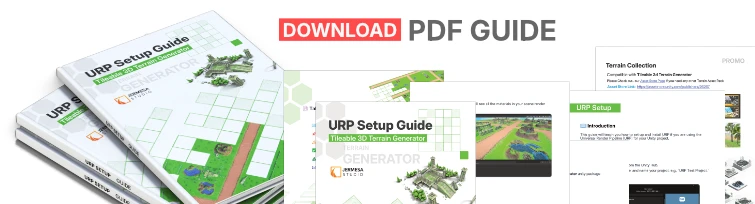
📥Download: PDF Guide Here
🚀 Getting Started
- Create a New Project from the Unity Hub.
- Select ‘Universal 3D coreʼ and name your project, e.g., ‘URP Test Project.’
- Click ‘Create projectʼ

📥 Import Unity Package
- Download/ Import the Tileable 3d Terrain Generator unity package
- Open the 📁 scene folder, Go to Tileable_3d_Terrain_Generator>Scenes Once you open the sample scene, you will notice a flat pink material error applied throughout. Don’t worry; we’ll fix it in the next step.

⚠️
Note: This tool requires Unity 2021.3 or later and works best with 3D terrain prefabs.

🧰 URP Install: Fixing flat pink material issue
- Open the 📁 URP Setup folder, Go to Tileable_3d_Terrain_Generator>URP Setup
- Double click on ‘URP Installʼ
- Click All and then click Import
- A window will popup and click Reload
- ✅ After these steps, you will see all the materials in your scene render correctly.


🏝️⛰️ Terrain Assets Collection: Compatible with (Terrain Generator)
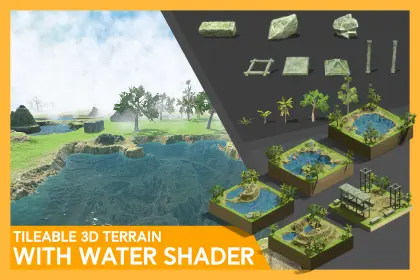


Please Check out.. our Asset Store page if you need any other Terrain Asset Pack
Compatible with Tileable 3d Terrain Generator Asset Store Link
✉️ Contact Us
Website: www.jermesa.com
Mail: support@jermesa.com
WhatsApp: https://wa.me
Instagram: jermesa_studio
Twitter: @Jermesastudio
Discord: https://discord.gg
AssetStore: assetstore.unity.com
YouTube: www.youtube.com
LinkedIn: jermesa-studio
AssetStoreLink: assetstore.unity.com
Leave a Reply